Inventory
The Inventory module enables a pricing and inventory manager, or other administrator, to manage ad inventory by setting parameters for available inventory, as well as reserves, booked, and pressure for both maintenance and planning. Inventory can be viewed by time or by brand category. The Inventory module works with other AOS modules and features such as the Product Chooser, Schedule, Sales, and Ratecard.
To set up the Inventory module:
-
Add products to the Inventory grid using the Product Chooser.
You can then export.
Adding Products Using the Product Chooser
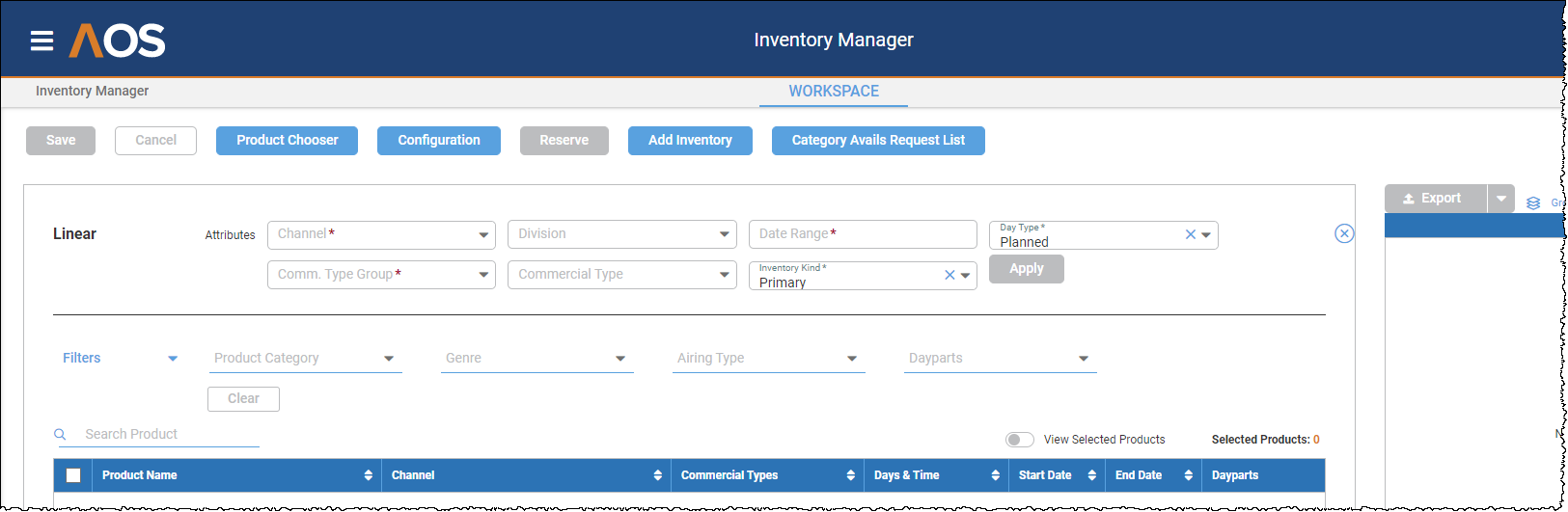
The first step in building the Inventory grid is to click the Product Chooser button. If you are entering AOS Inventory for the first time, it will automatically default to the Product Chooser.
-
Fill in the Attributes on the top of the screen. Mandatory fields are shown with a red asterisk.
-
Channel. Choose the channel this inventory grid will be built for. If you are building for multiple channels, choose multiple channels from the drop down.
-
If applicable, choose Division (this is not mandatory for the inventory grid).
-
Enter the Date Range by clicking in the field. The calendar component will display.
-
Either click on the first day and last day of the date range you are building the grid to or enter the start and end date on the upper left of the screen.
-
If you are building the grid for future years, choose the year from the drop down.
-
Click Apply when done.
-
-
Choose Comm(ercial) Type Group. You can choose several different commercial types, such as Billboards, Affiliates, and Network.
-
Enter a Commercial Type if desired. Examples are Direct Response, Vignettes, Programmatic.
-
Choose an Inventory Kind. Most often you will choose Primary.
-
Choose Day Type. Generally, for linear networks, you will choose Planned. Planned means what is being planned by traffic for the programs and breaks. It is the status of the day breakdown. Actual is the main choice, after transmission after the log reconciliation, and closed, that represent the actual figures. A tenant can choose to add more day types, create a label, and assign them to events that will be associated with one Schedule Type.
-
Click Apply when done.
-
-
The Product Chooser will now display all the products that fit the parameters you entered in Attributes.
-
Choose the products on the left by clicking the check box. If you want to use all products that are displayed, click the check box on the upper left corner and all will be entered into the Inventory grid.
-
To further narrow the product options, fill out the filters over the products. To narrow the product names, you can fill out the Product Name filter.
-
Product Category narrows the selections by different product groups, for example, certain sporting or entertainment events.
-
Genre, such as Comedy, Drama, etc.
-
Airing Type, such as Live event, Encore or Premiere.
-
Dayparts, such as Prime, Daytime, etc.
-
As you select each filter, the list will automatically show only the products that fit those categories.
-
Click Clear to clear the filters and return to the original list.
-
Toggle View Selected Products to see only those you checked off.
-
Click Add Selected Products to add to the grid.
-
-
After adding your products, exit the Product Chooser by clicking the X in the upper right corner. This will close the Product Chooser window and display the Inventory grid.
Configuring the Inventory Grid
To configure the Inventory grid:
-
Click on the Configuration button at the top of the screen. This will allow you to choose how you are going to see the inventory grid, and what parameters you will build the grid on.
-
Click either Time or Industry Category. If you view by time, you will see the amount of time avails in the grid.
If you choose Industry Category, you will have to type the Industry Category you want to view the grid by. For example, if you start to type AUTOMOVTIVE, you will see a list of Automotive industry categories to choose from.
-
Choose Breakdown. For most networks, the breakdown will be Weeks.
-
Choose the Spot Length. This will determine how many units you see.
-
Precision (choose 1)—the number of decimals for the measures.
-
Measures: This displays all the columns you can have for each breakdown week.
-
Capacity:
-
Scheduled – Derived from events associated with the Product
-
Adjusted – Manual Adjustment to Capacity
-
Placeholder – Manual Placement of Capacity
-
Expired - Inventory that has not been sold and is not available for selling anymore
-
Total – Effective Capacity – with or without adjustments
-
-
Product Units:
-
Booked (Unplaced) – Booked Units – This Product. Booked means that the units are in a booked status but are not yet placed on the log.
-
Placed – Placed units for this product. This means that the units are placed on the log.
-
Sold – Sold units represent the booked and the placed units.
-
-
Total Units:
-
Booked (unplaced) – This and Overlapping Products (Overlapping products: program specific vs. ROS bookings)
-
Placed – This and Overlapping Products
-
Sold – Booked and placed with overlapping products.
-
-
Reserves:
-
Total – Summary of all Reserves against this inventory record.
-
Used – Summary of used reserves for this inventory record.
-
-
Planning (Pressure)
-
Draft—in a “working” status, can be configured in a workflow status.
-
Pending—pending approval.
-
Total – Summary of both Draft and Pending approval inventory.
-
-
Maintenance (Pressure) calculates the inventory that has been approved and is booked.
-
Draft – working and saving, pre-approval.
-
Pending – Pre-approval Pressure. Pressure inventory that has not been approved yet but is waiting for approval.
-
Total – Total Pressure in Maintenance.
-
-
Breaks
-
Breaks
-
-
Avails – Available Inventory. Total Capacity less Total Sold and Reserved and Expired inventory. You can prevent capacity from being automatically deducted by using the Exclude- Expired Capacity option in the Avails Calculation Configuration.
-
Avails
-
Avails w/ Pressure - In order to see this column, you must choose at least one of the following values:
-
Planning - Draft
-
Planning - Pending
-
Maintanance - Draft
-
Maintanance - Pending
-
-
-
-
Avails Calculation: Considers what is still available to sell. This takes into consideration what is in traffic, and what is in planning and maintenance. Capacity minus what is sold:
-
Apply Planning Pressure:
-
Draft (In Preparation) – in a workflow state that is designated to count units against pressure inventory.
-
Pending (Pending Approval) – units in a deal that is waiting for approval to HOLD or ORDER.
-
-
Apply Maintenance Pressure:
-
Draft (In Preparation) – units that being revised within a deal.
-
Pending (Pending Approval) – units that are a part of a revision that is waiting for approval.
-
-
Exclude:
-
Manual Capacity
-
Overlapping Units
-
Expired Capacity
-
-
-
Click Apply.
-
The information that you chose under the Measures field in Configuration will now display as columns in the inventory grid. You may choose to hide any of these columns simply clicking on Configuration and reselecting the Measures.
The chosen products are now loaded into the workspace. A tooltip next to Products ( ) shows the user a quick view into the selections that were made in the Product Chooser and in the Configuration panel that may affect some of the measures on screen.
By choosing products and specifying a configuration, you have built your workspace to support your work.
Adding Inventory
Adding Inventory allows you to add expected time to a product in one or more broadcast weeks. This is helpful when there is no inventory on the schedule yet but you want to create a placeholder. To add inventory, click the Add Inventory button in the Workspace or Summaries screens. In the Add Inventory pop-up:
-
Choose the channel you are adding inventory to.
-
Click on Commercial Type and choose.
-
Click on Product, and a list of the products that inventory can be created for will display. Choose which products you want to add inventory to.
-
Capacity. The weeks in the inventory grid are listed under capacity. Add the inventory here as it is entered in the inventory grid. In other words, if your grid is build on :30 units, enter the number of :30 avails you want to add into the product’s inventory.
Placeholders: Create inventory for products that have no scheduled inventory for a given channel, period and commercial type.
Adjustments: Adjust existing inventory.
Reserves: Carve out inventory for a Plan Class, Line Class, Advertiser or General Reserve and hold the inventory until consumed by a deal matching the reserve parameters or release for general use.